
Before you Begin
-
You need Admin or User Manager access to create or edit reports.
-
Users with read-only access can only view reports.
-
To schedule interview calls, your organisation must have the Virtual Agent Add-on.
What are Incident Reports?
Incident Reports is Duress' incident management module available on the Dashboard. It allows you to:
-
Create reports from Emergencies or Offline Videos
-
Document people and vehicles involved
-
Automate incident creation after an event
-
Sync reports to platforms like Auror
It's available to all Duress users.
What is the Virtual Agent Add-on?
The Virtual Agent is a paid add-on that extends the Incident Reports feature set.
With it, you get:
-
Interview Calls: Let users speak to a Virtual Duress Agent. The agent will ask the user questions about the incident and their answers fill out the report automatically.
-
Automation: Interview calls can be auto-triggered after incidents.
-
Auto-submit to Auror: Reports can be submitted to Auror once the call is complete.
Learn more about Virtual Agent ->
Viewing Incident Reports
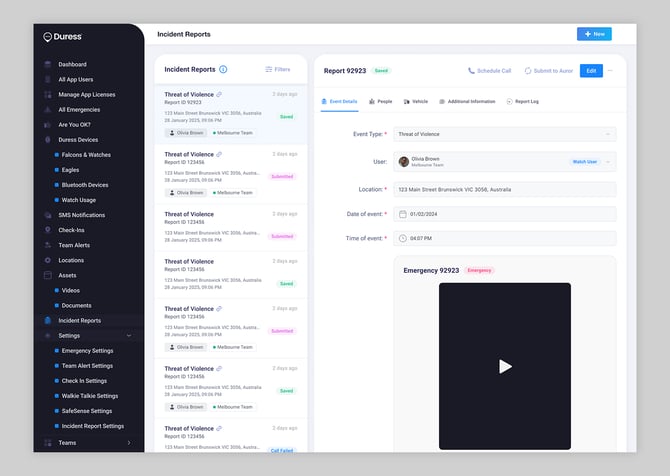
Incident Reports looks like an inbox. On the left, you’ll see:
-
Incident type
-
Report ID
-
Date added
-
Status
-
Location
-
Event date & time
-
User & team (if known)
-
Link to Emergency or Offline Video (if available)
Click any report to see its details on the right. You’ll see all entered information, along with available actions (Edit, Save, Sync, etc.).
Creating a New Report
You can create a report in three ways:
From the Incident Reports Module
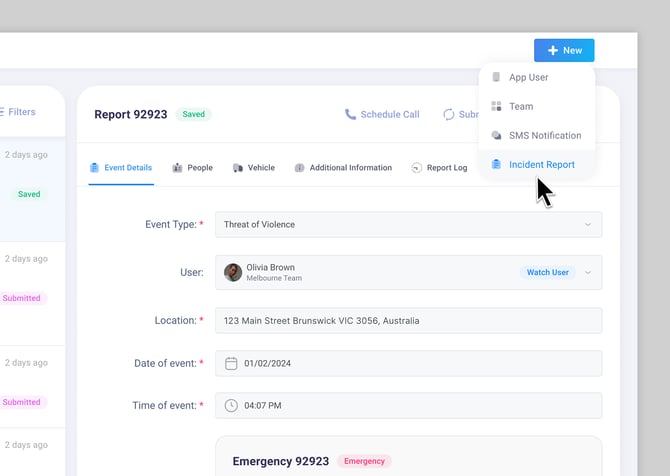
1. Click the blue “New” button (top-right)
2. Select Incident Report
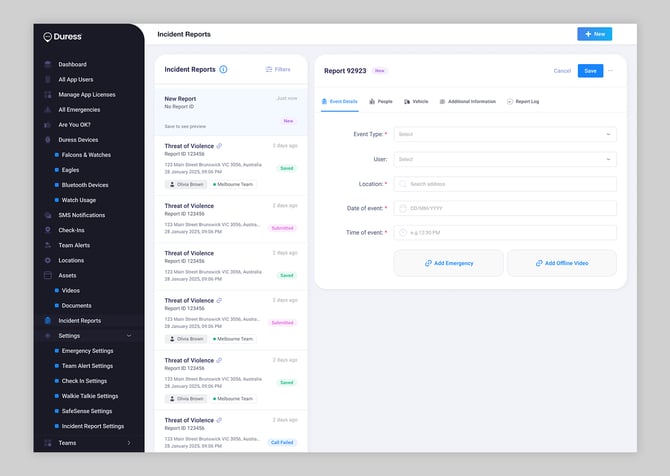
3. Fill in:
• Event Details (incident type, location, date/time, Emergency or Offline Videos can be attached)
• People involved (up to 10)
• Vehicles involved (up to 10)
• Additional information
4. Click Save
If a video is attached, location, user, date and time will be auto-filled for you.
From the Emergency Page
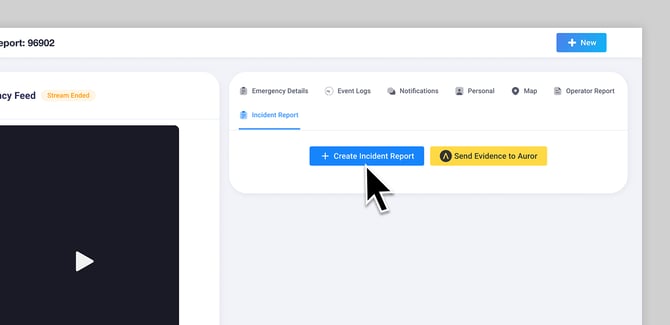
1. Go to the Emergency tab
2. Select an Emergency
3. Open the Incident Report tab
4. Click Create Incident Report
If a report already exists, this button will be disabled. Instead, click Show details to view/edit the existing report.
From the Offline Video Page
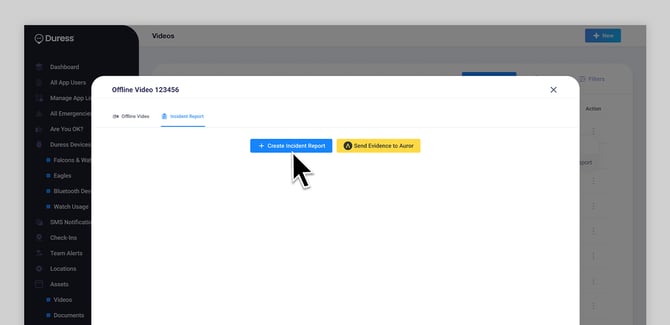
2. Select an Offline Video
3. Open the Incident Report tab
4. Click Create Incident Report
If a report already exists, this button will be disabled. Instead, click Show details to view/edit the existing report.
Scheduling an Interview Call
Only available with the Virtual Agent Add-on.
Once a report is saved, you can schedule a call:
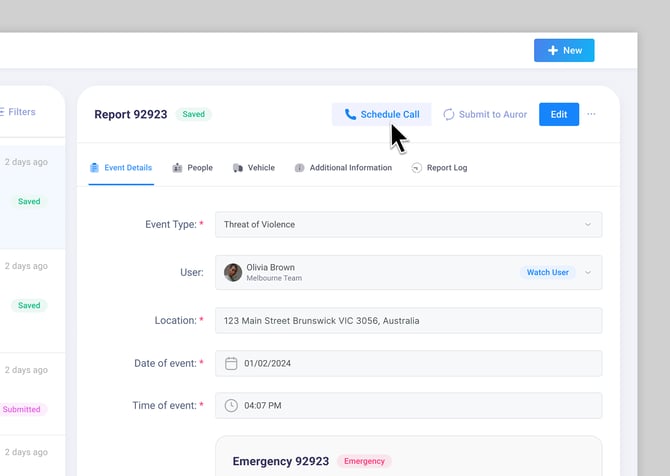
1. Click Schedule Call
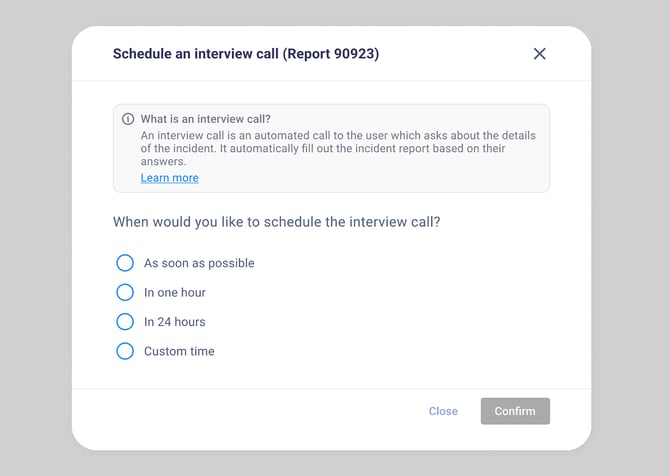
1. Choose when it should go out:
-
As soon as possible
-
In 1 hour
-
In 24 hours
-
Custom (select date/time)
2. Click Confirm
Once scheduled:
-
You can’t edit the call.
-
To cancel, click Cancel Scheduled Call.
After completion:
-
The report status returns to Saved
-
Interview answers are auto-filled
-
An AI summary is displayed at the top
-
The event log is updated with a timestamp
The system attempts to call the user twice. If both fail, it’s marked Call Failed after which you can try again.
Report Status Explained
| Status | What it means |
| New | Draft. Only visible to you. Unsaved changes will be lost if you exit. |
| Saved | Report is complete and visible/editable by all admins. |
| Call Scheduled | Interview call is scheduled. Report cannot be edited or submitted. |
| Call Failed | The user couldn’t be reached. You can edit or schedule another call. |
| Submitted | Report has been sent to a 3rd party (e.g. Auror) and is now locked. |
| Submission Failed | Auto-submission failed, you’ll need to retry submitting manually. |
Notifications
Admins and Managers are kept in the loop via SMS and email:
Organisation & Team Admins get email and SMS alerts:
-
When a call is completed
-
When a call fails
-
When submission to Auror fails
Team Managers & SMS Contacts get SMS alerts:
-
When a user asks for help or a follow-up during a Virtual Agent call